

Enabling and configuring COAR Notify
COAR Notify is a protocol for bidirectional communication between scholarly repositories and review platforms. With it enabled, external services can send Offers to Review straight into your Kotahi inbox, and Kotahi can respond with status notifications including endorsements and review relationships.
This page covers turning it on and configuring it. For day-to-day use, see Using COAR Notify.
Before you start
Section titled “Before you start”You will need:
- Admin-level access to your Kotahi instance
- Access to the Integrations and Publishing Endpoints section of settings
- Your server URL and group name, which together form your inbox
endpoint:
https://<serverUrl>/api/coar/inbox/<groupName>
Step 1 — Enable COAR Notify in workflow settings
Section titled “Step 1 — Enable COAR Notify in workflow settings”COAR Notify is hidden by default and must be enabled by an administrator before anyone can access it.
- Log in to Kotahi and select your group.
- Go to Configuration, then the Workflow tab.
- Scroll to Control panel.
- Find COAR Notify Metadata and enable it.
- Click Save.
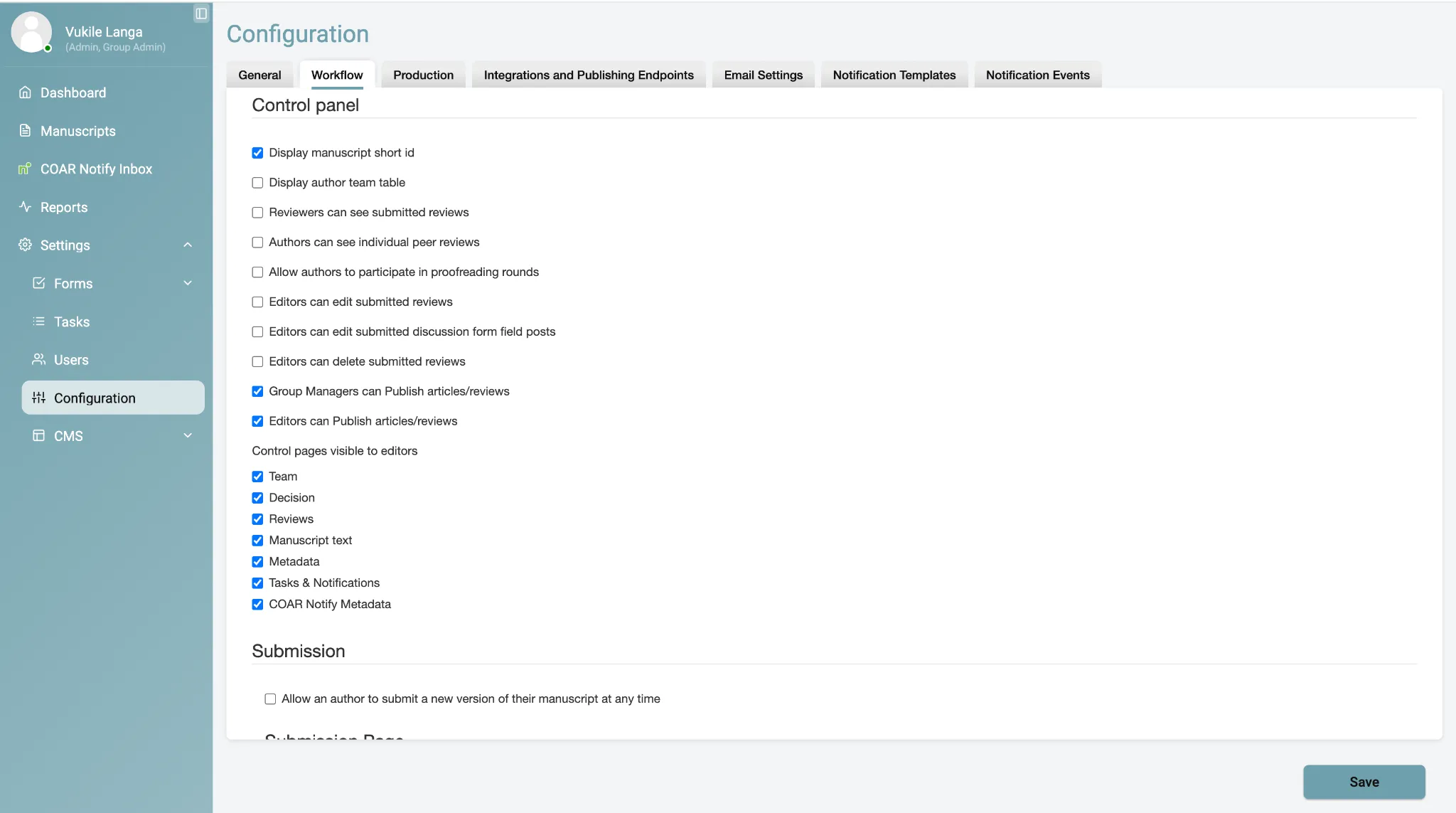
Once enabled, two things become visible:
| Feature | Visible to |
|---|---|
| COAR Notify Inbox | Admin roles only |
| COAR Notify Metadata tab | Admin and Editor roles |
Step 2 — Set up OAuth authentication
Section titled “Step 2 — Set up OAuth authentication”COAR Notify uses OAuth token-based authentication. You must generate and apply a bearer token before any API communication will succeed.
- Go to Configuration, then the Integrations and Publishing Endpoints tab.
- Click Refresh auth token to generate a new token.
- Click Save. Kotahi generates and displays your bearer token.
- Copy the token and store it somewhere secure — you will need it for API requests.
- Apply it in your API calls as an
Authorizationheader:
Authorization: Bearer <your-token>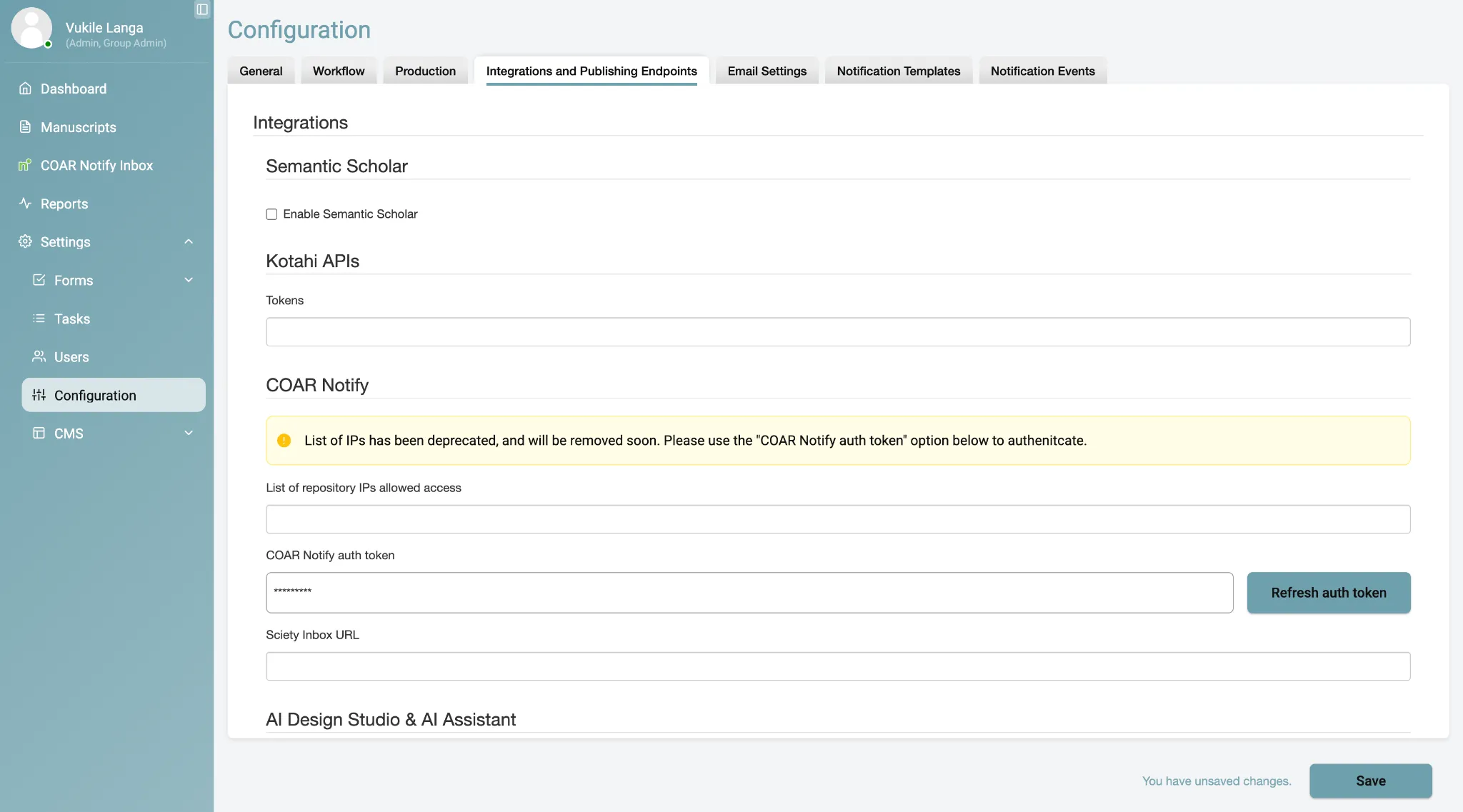
Step 3 — Share your integration endpoint
Section titled “Step 3 — Share your integration endpoint”External services send COAR Notify requests to your Kotahi API endpoint, which is composed as:
[server URL] + [API path] + [group name]So the full form is:
https://<serverUrl>/api/coar/inbox/<groupName>Substitute your own server URL and Kotahi group name, then share the result with the repository or service that will be sending you requests.
Step 4 — Configure endorsement statements (optional)
Section titled “Step 4 — Configure endorsement statements (optional)”Endorsement statements let Kotahi formally announce review relationships to authors over COAR Notify. This is configured separately, in your decision form.
- Go to the Decision sub-menu and click +.
- Add a new field of type Endorsement Statement.
- Save the configuration.
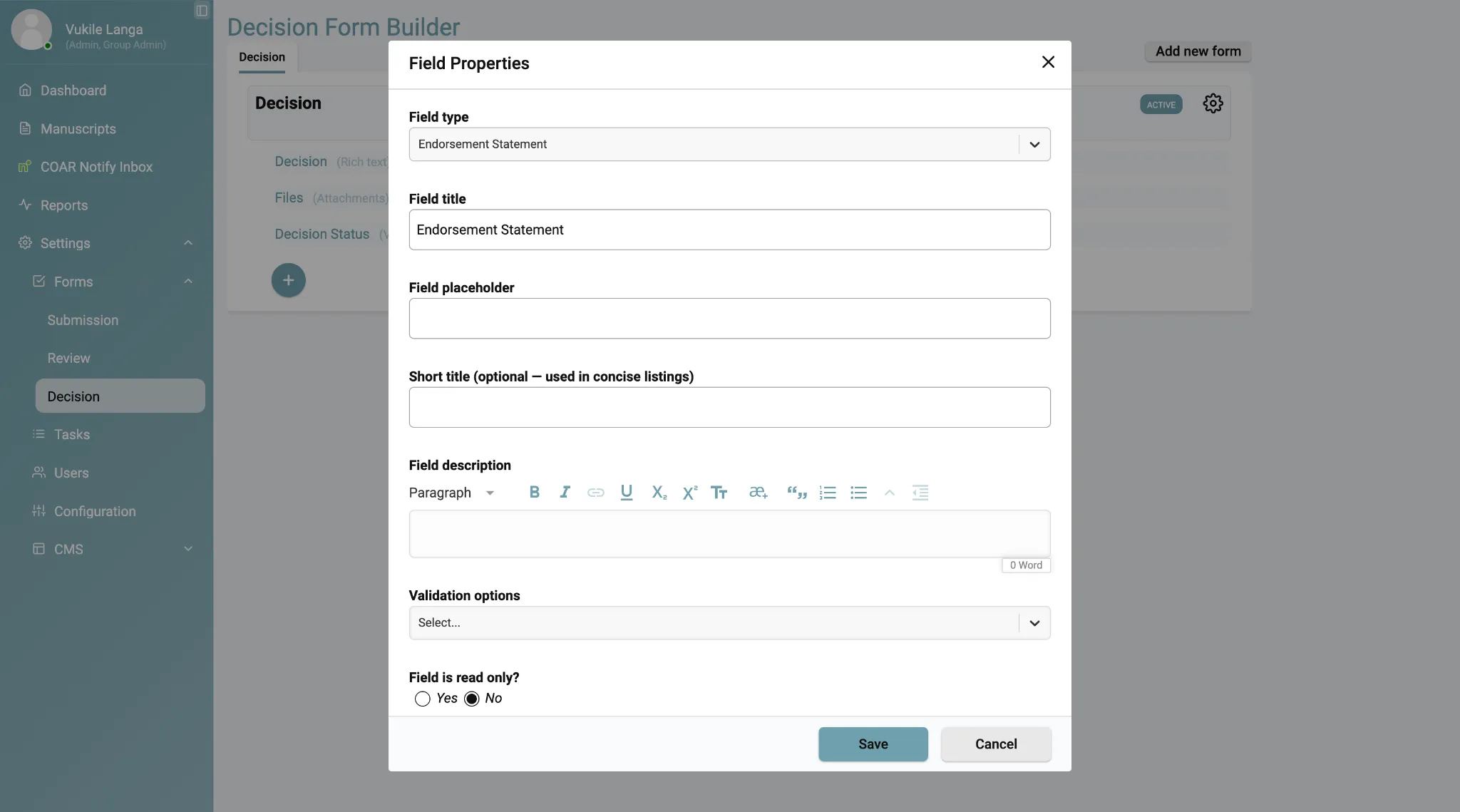
The endorsement statement field then appears in the relevant decision forms, and the corresponding COAR Notify announcements fire when a decision is recorded.
Step 5 — Configure actor information
Section titled “Step 5 — Configure actor information”Kotahi uses the handling editor’s ORCID details for most COAR Notify actor information. Where it cannot determine the actor, it falls back to default values, which you set here.
- Go to Group Identity Settings.
- Enter your ROR identifier.
- Enter your journal title.
- Save the configuration.
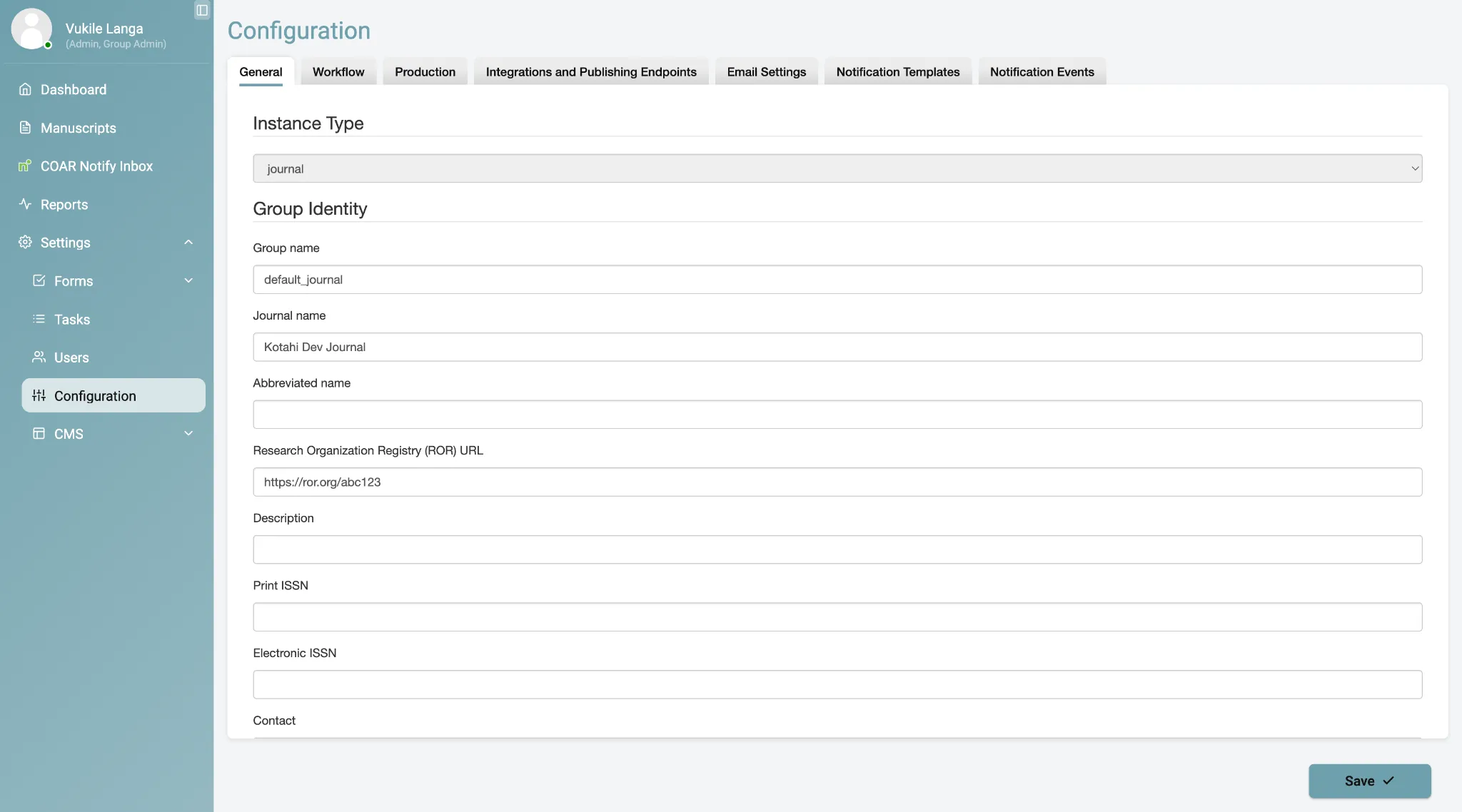
If group identity settings are left unconfigured, Kotahi defaults to the handling editor’s identity, or to anonymous identifiers where it has to.
Getting help
Section titled “Getting help”Email the eLife Pathways team at pathways@elifesciences.org.