
Email templates
In this section
Section titled “In this section”Managing email templates.
Section titled “Managing email templates.”There are many options for managing customized event-driven automated emails.
You can view, edit and/or create email notification templates here. All templates appear as options to assign in the event in the Configuration manager, recipients in the Task manager and when sending an ad-hoc Notification.
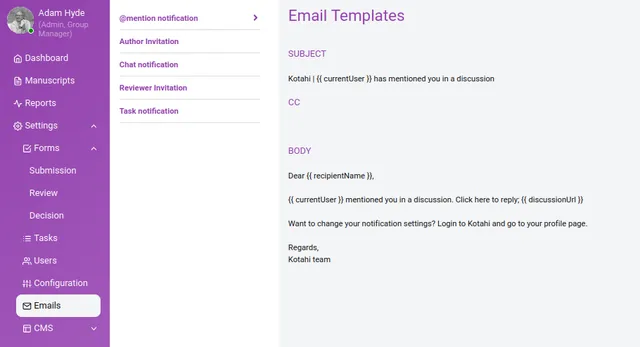
Group Managers can create a new template or edit an existing template from the Settings>Email page.
Email body content can be personalised using the Handlebars.js variables framework. A set of variables map to select metadata content that is either system-generated (e.g. manuscript id) or captured in a form (e.g. manuscript title).
These initial variables allow for the insertion of text and hyperlinks in the body content of an email notification template e.g. Manuscript titles, sender/recipient usernames, manuscript ids etc.
A list of variables that can be used include:
- Manuscript title - {{ manuscriptTitle }}
- Group login link - {{{ loginLink }}}
- Sender name - {{ senderName }}
- Recipient name - {{ recipientName }}
- Author name - {{ authorName }}
- *Manuscript link (URL) - {{{ manuscriptLink }}}
- Manuscript title link (
submission.link) - {{{ manuscriptTitleLink }}} - Manuscript number (
shortId) - {{ manuscriptNumber }}
*This link is adapted based on the receiver’s role. If an editor receives an email notification that includes a link to a Manuscript in Kotahi - the link will point to the Control panel. If the recipient is a reviewer, the link will direct the user to the Review page and the author to the Submission page.
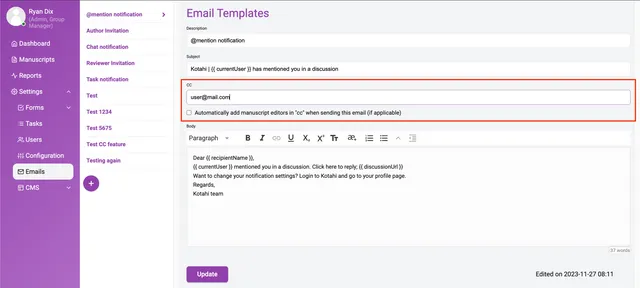
Group Managers can manually add a CC from the Emails>Email template>CC field, allowing someone apart from the primary recipient to receive a copy of the email. Selecting the checkbox will CC all editors assigned to a manuscript into the email notification when sent.